Finding Your Way Around
The sidebar
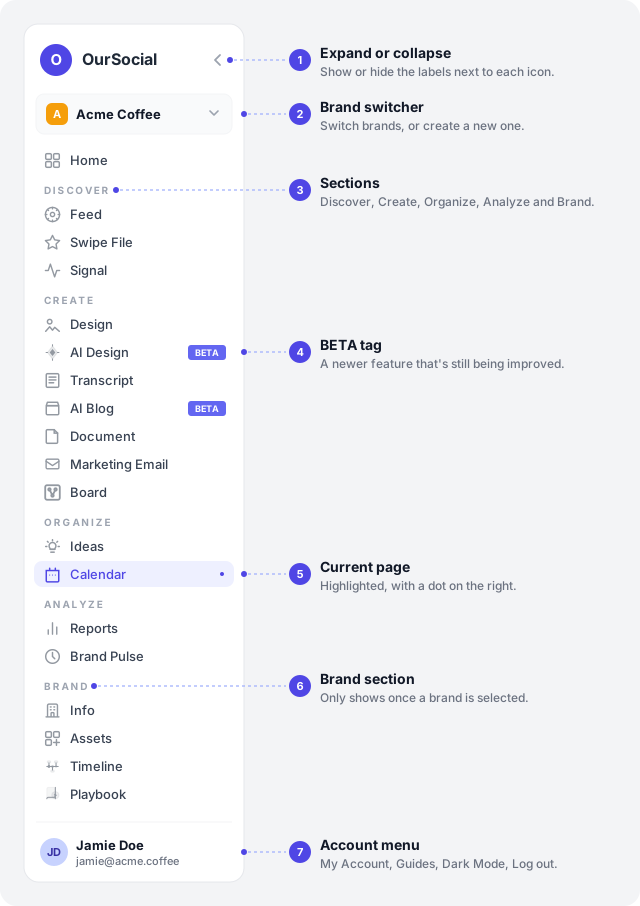
Section titled “The sidebar”The strip of icons down the left side of the screen is how you get everywhere in OurSocial. Click the arrow at the top to expand it and see labels next to each icon.
The brand switcher
Section titled “The brand switcher”Right below the OurSocial logo is a small box showing your current brand’s logo and name. Click it to switch to a different brand, or to create a new one if you don’t have any yet.
Some sections (like Brand) only appear in the sidebar once you have a brand selected.
Your account menu
Section titled “Your account menu”Click your profile picture at the bottom of the sidebar to:
- Go to My Account to update your profile.
- Send Feedback to the OurSocial team.
- Report a bug if something looks broken.
- Switch between Light Mode and Dark Mode.
- Open Guides — this opens these guides at docs.oursocial.co in a new tab. Come back any time you’re not sure how something works.
- Log out.
Locked or greyed-out items
Section titled “Locked or greyed-out items”If a sidebar item looks faded and you can’t click it, it usually means one of two things:
- You haven’t verified your email yet — check your inbox for a verification email.
- You’re still finishing brand setup (onboarding) — a brand unlocks the rest of the app once every required setup tab has at least one thing filled in: Info, Audience, Kit, Assets, Competitors, Pillars, Timeline, and Playbook. Once they’re all done, a “Ready to Launch” banner appears on the Info tab — click it to activate the brand.