Visual Identity — Keep Every Design On-Brand
Your Brand Kit holds your colors, fonts and logo. Your visual identity says how to use them: which color is the background, which font is the headline, how big things are, what your buttons look like, and how your designs should feel.
Think of it as your brand’s rulebook, all in one place. It keeps every design consistent, whether it’s made by you, your team or Orsa:
- Your team has one clear reference for how the brand looks, instead of guessing or digging through old posts.
- The Quality Gate checks any design against these rules and points out anything off-brand, like a wrong color, tiny text or a misplaced logo.
- AI designs follow these rules from the start, so they look like your brand without extra back-and-forth.
Everything here is optional. Fill in what you know. Even a few fields make a big difference. Short on time? Start with the Quick start, or let us suggest everything from your posts.
You’ll find it at the bottom of your Brand Kit, under Visual identity. It’s made of these parts, each with its own Save button:
- Color roles: what each brand color is for
- Text styles: fonts and sizes for each kind of text
- Logo variants: which logo version goes where
- Feel and layout: the mood and overall style
- Color rules: which colors go together, and how much of each
- Shapes: corners, outlines, shadows and decorative shapes
- Buttons, cards and tags: how these look every time
- Signature elements: the graphic touches that make designs yours
- Logo rules: where the logo goes and how big it is
- Imagery: how photos are placed and treated
- Layout and type limits: favorite layouts and text limits
- What the designer sees: a preview of your rules for each format
Quick start (5 minutes)
Section titled “Quick start (5 minutes)”Open your Brand Kit and scroll down to Visual identity.
- In Color roles, set Background, Text on background, Primary and Accent.
- In Text styles, set Headline and Body.
- In Logo variants, make sure your main logo is there and marked as the default.
- In Feel and layout, add 3 words that describe your brand.
- Run the Quality Gate on a design, or create an AI design, and see the difference.
Everything below that is extra polish. Add it whenever you like.
How sizes work
Section titled “How sizes work”Every size in your visual identity is entered in pixels for a 1080px-wide design, for example a 1080 × 1080 Instagram post. You set it once, and it scales to every other format. A 92px headline on a square post becomes the same share of a Story or a LinkedIn post.
Color roles
Section titled “Color roles”Give each of your brand colors a job. For each role you want to use, pick a color from your palette.
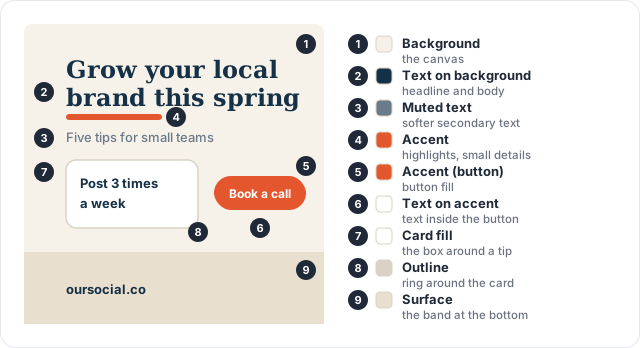
| Role | What it does |
|---|---|
| Background | The main background of most designs |
| Text on background | Headlines and body text on that background |
| Muted text | Softer, secondary text, like a subtitle or a caption |
| Primary | The background of “reverse” designs (see below) |
| Text on primary | Text on reverse designs |
| Secondary text on primary | Softer text on reverse designs |
| Accent | Buttons, highlights and small details. Use it sparingly |
| Text on accent | Text inside accent shapes, like a button |
| Surface | Large secondary areas, like a band or half of a split layout |
| Text on surface | Text on those areas |
| Card fill | Boxes and tiles that hold content, like a tip or a quote |
| Text on card | Text inside cards |
| Outline | Thin rings around cards and photos, and dividers |
| Scrim | A see-through layer over photos so text on top stays readable |
What’s a reverse design? Most brands mix light designs with some bold ones that use the brand’s strong color as the background. Those bold ones are reverse designs. They use Primary for the background and Text on primary for text.
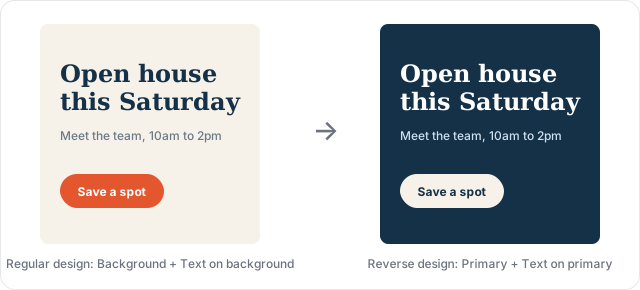
Tips:
- You don’t need every role. Most brands only need the four in the quick start.
- Use the opacity slider to make a color see-through, for example muted text at about 70%.
- When you save, we check that text is easy to read on its background. If it isn’t, you’ll see a message naming the pair, for example “Text on background has contrast 2.10:1”. Pick a darker or lighter color and save again.
Text styles
Section titled “Text styles”Set up one style for each kind of text you use.
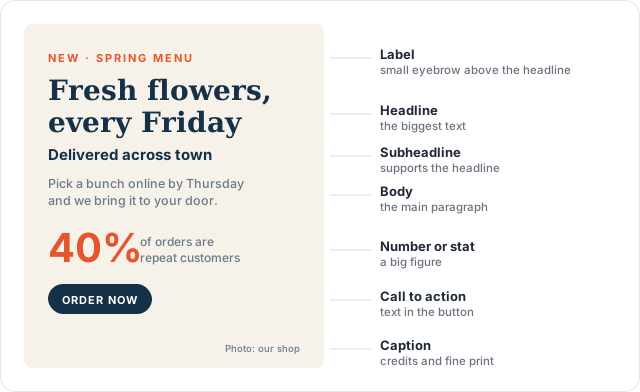
| Style | What it’s for |
|---|---|
| Headline | The biggest, most important text |
| Subheadline | A shorter line that supports the headline |
| Body | The main paragraph |
| Caption | Small print, like photo credits |
| Label | A small “eyebrow” above the headline, like NEW · SPRING MENU |
| Call to action | The text inside a button, like Order now |
| Number or stat | A big figure, like 40% |
| Quote | A pull quote or testimonial |
For each style you can set:
| Setting | What it does |
|---|---|
| Font | The font and weight, from your Brand Kit fonts |
| Size (px at 1080) | How big the text is on a 1080px-wide design |
| Case | As written, Sentence case, Title Case, UPPERCASE or lowercase |
| Line height | Space between lines. 1.0 is tight, 1.2 is normal, 1.5 is loose |
| Letter spacing (em) | Space between letters. Small positive numbers, like 0.08, spread them out, which suits uppercase labels |
| Max lines | The most lines this text may wrap to |
| Color on light backgrounds | Which color role this text uses on regular designs |
| Color on reverse backgrounds | Which color role it uses on reverse designs |
Good to know:
- The headline must be bigger than the body text.
- Fonts come from your Brand Kit. If a font isn’t in the list, upload it in Brand Kit first: open your Brand Kit and add it under fonts. TTF, OTF and WOFF files work; WOFF2 files don’t.
Logo variants
Section titled “Logo variants”Most brands have a few versions of their logo, such as full color, all white, or just the icon. Add each one here so the designer picks the right one for each background.
- Click + Add logo and upload the file. No logo file? Type your brand name instead. This is called a wordmark: your name set in one of your brand fonts.
- Choose the type: Primary logo, Horizontal (icon beside the name), Stacked (icon above the name), Icon only or Wordmark (the name alone).
- Choose the tone: Full color, Reverse (the light version for dark backgrounds), Black or White.
- Under Use on, tick the backgrounds this version looks good on, and whether it can sit on photos. For example, a white logo belongs on Primary, not on a white Background.
- Click Make default on the version the designer should use first. Only one logo can be the default.
Feel and layout
Section titled “Feel and layout”This tells the designer the mood and overall style of your brand.
Feel
- 3 to 5 words that describe your brand, like calm, editorial or warm. Type a word and press Enter. You can’t save with only one or two words.
- Avoid going too far: pairs like playful but not childish. These stop the designer from overdoing a word.
- In a sentence: describe your designs in one line, for example “White cards on soft gray, one confident accent color.”
- Why it works: which habits create that feel, for example “Paper backgrounds and navy serif type make it feel considered and calm.”
Layout
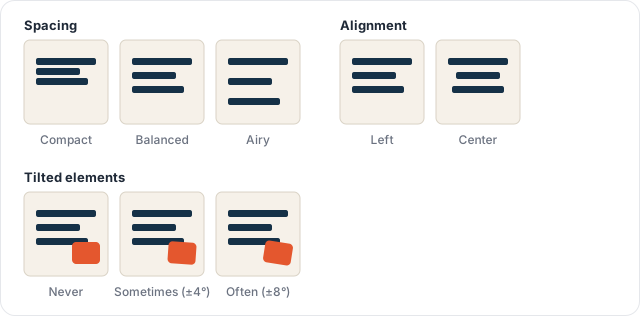
| Setting | Choices | What it does |
|---|---|---|
| Spacing | Compact, Balanced, Airy | How much empty space there is around and between things |
| Margins | Tight, Standard, Roomy, or your own % | How far text and the logo stay from the edges |
| Alignment | Left, Center | How the main text lines up |
| Corners | Sharp, Small, Large | The default corner size. Set the exact sizes in Shapes |
| Shadows | None, Soft, Strong | Whether things cast shadows. Tune them in Shapes |
| Outlines | None, Thin, Bold | Whether cards and photos have a ring around them |
| Imagery | Photos, Illustrations, Mixed, None | What kind of pictures your designs use |
| Tilted elements | Never, Sometimes, Often | Whether stickers, cards and photos may be slightly rotated |
Click Save when you’re done. The Visual Style text in your Brand Kit updates to match.
Color rules
Section titled “Color rules”Fine-tune how your colors are used together. These rules refer to your color roles, so set those first.
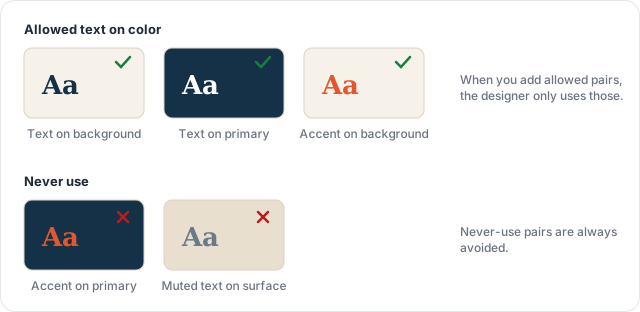
| Setting | What it does |
|---|---|
| Allowed text on color | Pairs of text color and background color the designer may use. Once you add any, it uses only these pairs |
| Never use | Pairs the designer must always avoid, for example accent text on primary |
| In every design | Colors every design must include, like your accent |
| Lighter and darker shades | Yes lets the designer use tints and shades of your colors. No keeps colors exactly as they are |
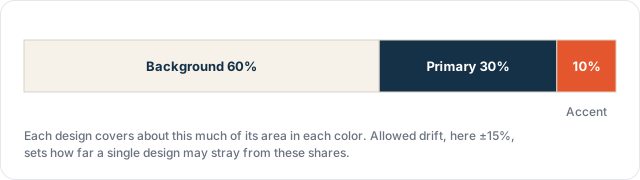
| Proportions | Roughly how much of each design is covered by each color (see below) |
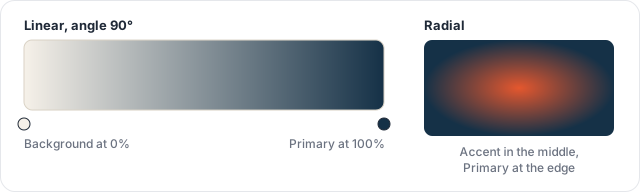
| Gradients | The only gradients the designer may use (see below) |
| Status colors | Colors for success, warning, info and error, like a green “Open” or red “Sold out” badge |
Proportions. Add a color and its share of the design. The shares must add up to 100%. Allowed drift says how far one design may stray from these shares.
Gradients. Give each gradient a short name, pick Linear (a straight fade, with an angle) or Radial (fading out from the center), then add the colors in order with their positions from 0% to 100%. If you add none, the designer uses no gradients at all.
Status colors. For each state, enter a hex code (like #15803D) for the dot, the background and the text. You can limit status colors to certain signature elements, so they never spill into the rest of the design.
Shapes
Section titled “Shapes”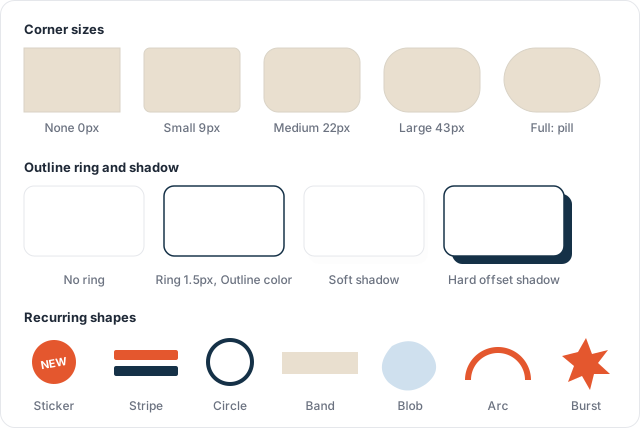
| Setting | What it does |
|---|---|
| Corner sizes | The corner choices that cards, buttons and tags pick from. Each has a name and a size in px, or Pill for fully rounded ends. The defaults are none, sm, md, lg and full |
| Outline ring | Turn on to give cards and photos a thin line around them. Pick its width (0.5 to 4px) and color |
| Shadow | Turn on, then set the offset (how far down it falls), blur (0 for a crisp, graphic shadow; higher for a soft one), spread, opacity and color |
| Recurring shapes | Decorative shapes the designer may use: sticker, stripe, circle, band, blob, arc and burst |
The ring and shadow here are the style. Whether a button or card actually uses them is set in Buttons, cards and tags.
Buttons, cards and tags
Section titled “Buttons, cards and tags”Make these look the same in every design.
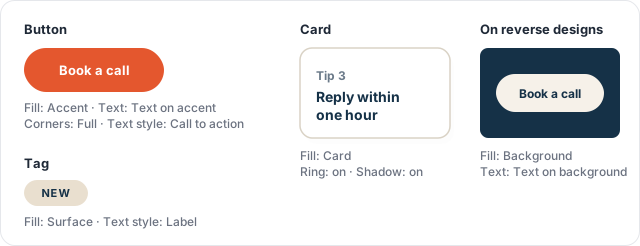
Turn each one on with Set, then choose:
| Setting | What it does |
|---|---|
| Fill | The color role inside it |
| Text color | The color role of the text on it |
| On reverse designs: fill and text color | Different colors to use when it sits on a reverse design, for example a light button on a dark background |
| Corners | One of your corner sizes |
| Text style | Which text style its text uses, usually Call to action for buttons and Label for tags |
| Outline ring | Whether it gets the outline ring from Shapes |
| Shadow | Whether it gets the shadow from Shapes |
Signature elements
Section titled “Signature elements”Signature elements are the graphic touches that make a design recognizably yours, like a highlighter swipe behind key words, a round sticker badge or a photo frame.
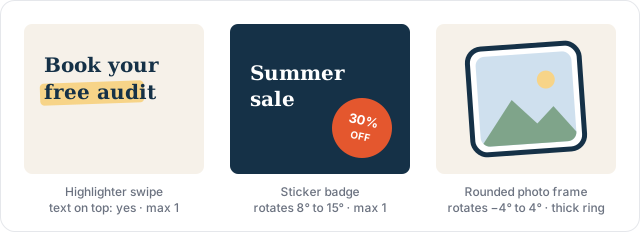
Click Add element and fill in:
| Setting | What it does |
|---|---|
| Name | A short name, like highlight_swipe |
| What it looks like | Its shape, colors, size and where it sits, clearly enough that the designer can rebuild it |
| Most per design | How many times it may appear in one design |
| Runs off edges | How many canvas edges it may run off (0 to 4) |
| Rotation | The range it may be tilted by, for example −4° to 4° |
| Text on top | Whether text may sit on top of it |
To make the designer use your elements, set Signature elements in Layout and type limits to 1 or more.
Logo rules
Section titled “Logo rules”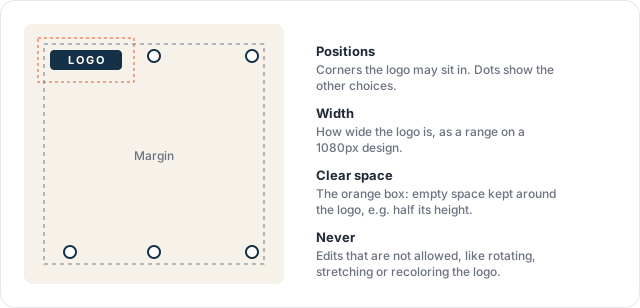
| Setting | What it does |
|---|---|
| Positions | The corners the logo may sit in, always inside the margins. None selected means any corner |
| Width | The smallest and largest logo width, in px on a 1080px design |
| Clear space | Empty space kept around the logo, as a multiple of the logo’s height, width or icon height. For example, 0.5 × logo height |
| Never | Edits the designer must not make to the logo: rotate, recolor, stretch, shadow, filter or crop. All six are on by default |
Imagery
Section titled “Imagery”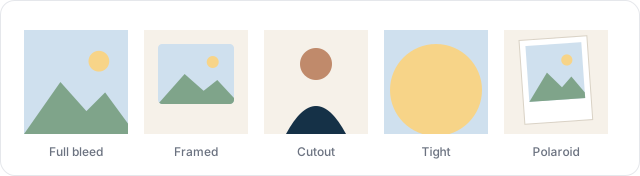
| Setting | Choices | What it does |
|---|---|---|
| Photo crop | Full bleed, Framed, Cutout, Tight, Polaroid | How photos sit in the layout. Full bleed covers the whole canvas, Framed sits inside a margin, Cutout shows the subject without its background, Tight is a close crop, Polaroid has a white instant-photo border |
| Photo treatment | None, Duotone, Grain, Mono | An effect on every photo. Duotone uses two of your colors, Mono is black and white |
| Lighting | Natural, Studio, Any | The kind of light in your photos |
| People | Candid, Posed, No people, Any | How people appear in your photos |
| Never use | Vignette, Lens flare, Vintage filter, Glow | Photo effects to avoid |
Layout and type limits
Section titled “Layout and type limits”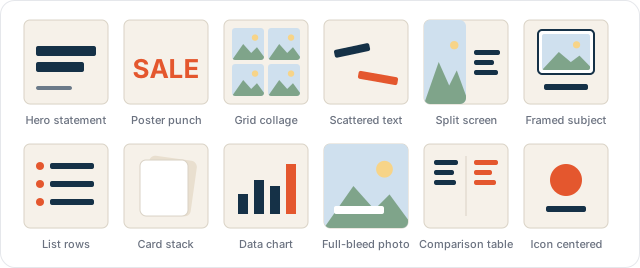
| Setting | What it does |
|---|---|
| Layout mix | Which of the 12 layout types to use and how often. For example, Hero statement 60% and List rows 40% |
| Avoid layouts | Layout types the designer should never use |
| Words per slide | The most words a design or carousel slide may carry |
| Signature elements | The fewest signature elements each design should use (0 to 3) |
| Designs on the primary color | Roughly what share of designs or carousel slides are reverse designs |
| Spacing unit | The base step that gaps are built from, in px. Gaps become multiples of it, so spacing looks consistent |
| Smallest text | No text may be smaller than this |
| Font families | The most font families allowed in one design |
What the designer sees
Section titled “What the designer sees”Open What the designer sees at the bottom and pick a format, like Instagram Story or LinkedIn Post. It turns your rules into real sizes for that format, so you can check they make sense. It’s also exactly what the AI designer gets.
It also shows each format’s safe areas. On a Story, for example, the designer keeps text away from the top and bottom, where Instagram puts its own buttons.
Suggestions from your posts
Section titled “Suggestions from your posts”Don’t want to fill everything in by hand? OurSocial can study your designs and suggest a full visual identity: color roles, text styles, logo use, all the rules above, and the feel.
Start an analysis
- In Visual identity, click Suggest from posts or images.
- Source: choose My past posts to learn from what you’ve published, or Inspiration images to upload designs you like, yours or another brand’s.
- Images: pick 5 to 10. Pick a mix, like a bold headline, a list, one big photo and a quote, so we see your full range.
- Colors and fonts: choose how to treat colors.
- Use my brand colors and fonts: we work out which of your Brand Kit colors plays which role, and which of your fonts is used for each text style. No new colors are suggested.
- Also suggest new colors: the same, plus a list of colors from your images that aren’t in your Brand Kit yet.
- Click Start analysis.
While it runs
You’ll see “We’re analyzing your designs” at the top of the section. It usually takes under an hour, and you’ll get a notification when it’s done. We only show the suggestions once everything is ready, including the sample designs.
Review the suggestions
- Click Review suggestions.
- At the top you’ll see sample designs made with the suggested identity, so you can see how it would look before you apply anything.
- Below that is the list of suggestions. Each one shows how consistent your designs were, for example “80% agree”. Suggestions with 60% or more are ticked for you.
- Untick anything you don’t want, or tick extra ones. Only ticked items are applied. Anything you set yourself stays as it is unless you tick it.
- Click Apply. Or click Dismiss all to ignore the suggestions.
You may also see two notes under the list:
- Colors not in your palette: colors that show up a lot in your designs but aren’t in your Brand Kit. Add them to your palette if they belong to the brand.
- Logos not uploaded yet: logo versions your designs use that aren’t in your logo variants, for example “Icon only logo, reverse on primary · 4 designs”. Upload them so the designer can use them too.
What gets suggested
Almost everything on this page, including your logo variants’ type, tone and backgrounds. A few things are never suggested, because not seeing something in your designs doesn’t mean your brand forbids it:
- Never use color pairs, banned photo effects, logo Never edits and Avoid layouts
- Status colors, which rarely show up in social posts
- The spacing unit, which can’t be measured reliably from a finished design
Set these yourself if you need them.
Copy and import
Section titled “Copy and import”Use the ⋯ menu next to Suggest from posts or images to copy your visual identity or bring one in. This is handy for reusing a look across related brands, keeping a backup before big changes, or editing the rules in bulk.
Copy JSON copies your color roles, text styles, rules and feel to your clipboard as text. Logo variants and per-format adjustments aren’t included.
Import from JSON
- Click ⋯, then Import from JSON.
- Paste the text you copied, then click Preview changes.
- The Review suggestions window opens with everything ticked. Untick anything you don’t want to change.
- Click Apply. Nothing changes until you do.
Colors are matched by their hex code, and fonts by name, weight and style. When you import into another brand, add the same colors and fonts to that brand’s Brand Kit first. If any are missing, the import tells you which ones.
How it keeps designs on-brand
Section titled “How it keeps designs on-brand”When you run the Quality Gate on any design, including ones you made yourself in the design editor, it checks it against your visual identity. It flags off-brand colors, text that’s too small or too close to the edge, hard-to-read text, and logos that are the wrong size or in the wrong place. Each issue tells you what to fix.
When you create an AI design:
- Colors, fonts, sizes and your logo come straight from your visual identity.
- Buttons, cards, tags and signature elements look the same from design to design.
- Layouts match your feel and layout mix, and change from slide to slide so carousels don’t repeat.
- The designer checks its own work once and fixes clear mistakes, like an off-brand color, before you see it.
Common questions
Section titled “Common questions”I get a contrast error when I save. A text color is too close to its background color to read easily. Make one of them darker or lighter, or remove that pair.
I get “is not an allowed color pair”. You’ve added Allowed text on color pairs, so the designer may only use those. A text style, button or card uses a pair that isn’t on the list. Add the pair, or change the text style or element.
I get “Must be a key of shape.radius_scale” after changing corner sizes. A button, card or tag, or the Corners setting in Feel and layout, still uses a corner size you removed. Pick another size there, or add the size back.
I get “Proportions must add up to 1”. Your proportions don’t add up to 100%. Adjust them until the total under the list says 100%.
The Save button in Feel and layout is grayed out. You have one or two feel words. Add at least three, or remove them all.
My font isn’t in the list. Upload it in your Brand Kit first. WOFF2 files aren’t supported; use TTF, OTF or WOFF.
I get “Headline must be larger than body”. Make the headline size bigger, or the body size smaller.
My white logo is hard to see in the preview. That’s expected on light backgrounds. Under Use on, only tick dark backgrounds like Primary for that version.
A suggestion I expected isn’t in the list. We only suggest things that most of your designs agree on. If your designs are very different from each other, pick images that better show your usual style and run the analysis again.
The analysis failed. It needs at least 5 usable images. Pick a few more, then try again.